Capturing unforgettable moments

Timestamp
All photos and videos must be through the timestamp. Please make sure the flash is on and take clear photos.
Link to download the Timestamp App:
For Android: https://play.google.com/store/apps/details?id=com.jeyluta.timestampcamerafree
For iPhone: https://apps.apple.com/us/app/timestamp-camera-basic/id840110184
Find station & storage
Locate the station and storage in the restaurant. (Ask your chat manager for assistance if needed)
Prepare Laptop and Printer:
Set up the laptop by connecting the power and USB printer cables and turn on the laptop and printer. 🖥️⚡
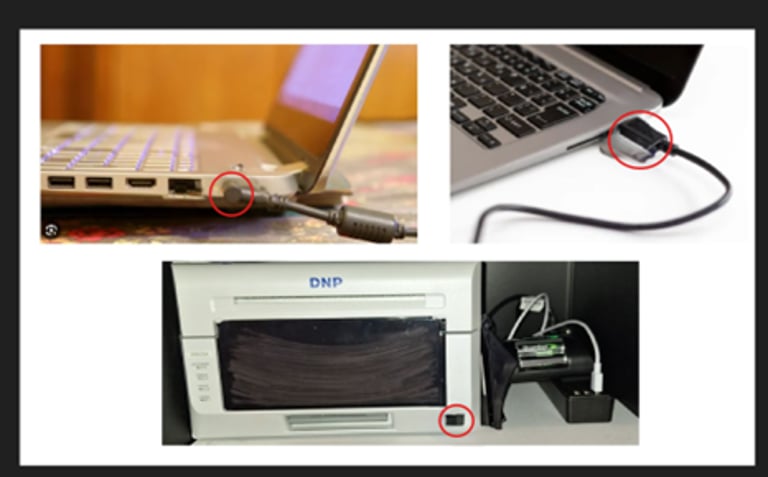
Open the Station Side Locker:
Use the 4-digit code to unlock the station’s side locker. (passcode: 1478)
Pull down the button to open. 🔑
If the lock doesn’t open, reset the code and try again.
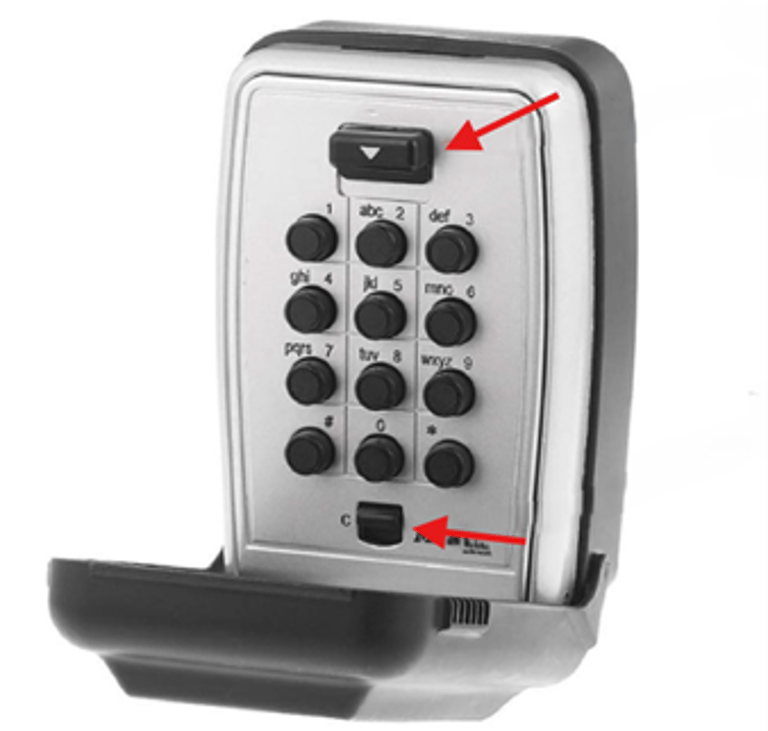
Pull down to open
Reset
Connect the Square Reader:
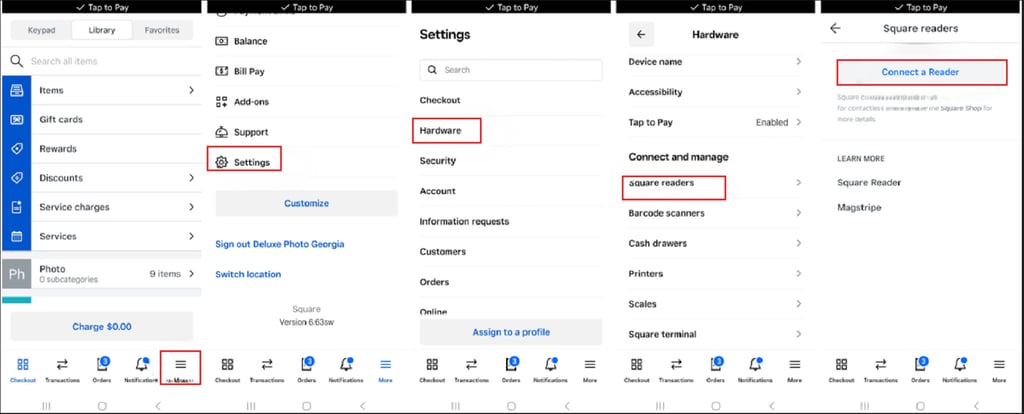
Open the Square app and navigate: "More" → "Settings" → "Hardware" → "Square Readers" → "Connect a Reader". 📱
Items to be checked and photographed:
1. Photo of the time in the report.
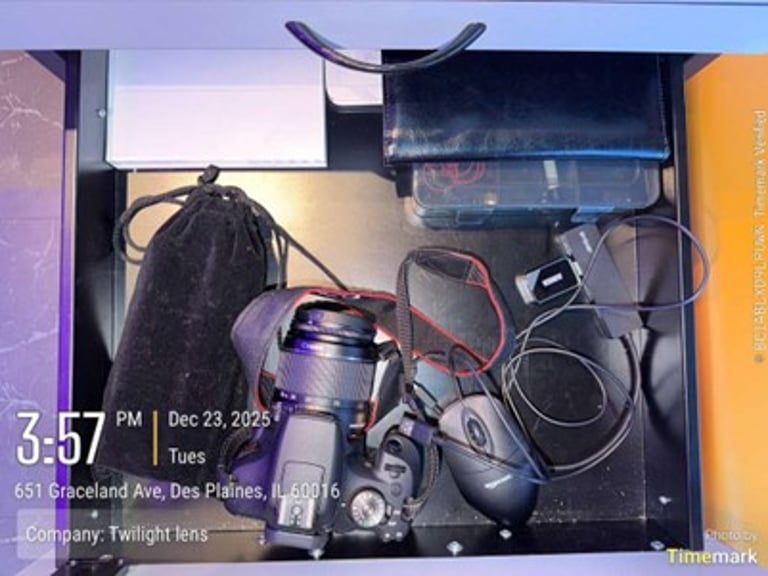
2. Photo of the drawer contains all photography supplies.
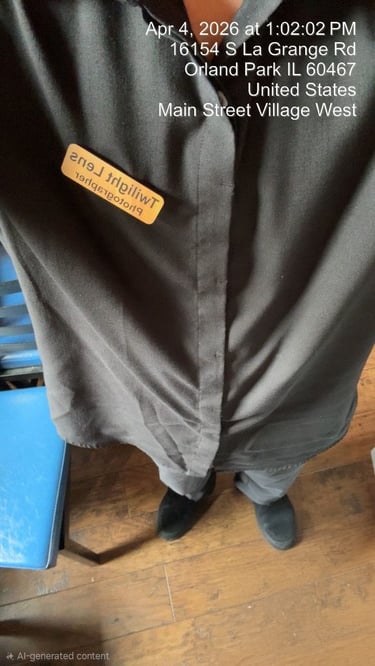
3. Photo of uniform: so we can see that you wear a uniform (you can send without face, but it should show the shirt, pants, and Shoes)
4. Photo of frames in the station (Clear picture)
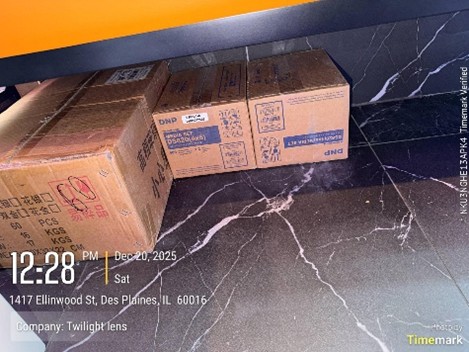
5. Extra boxes of both media and frames
1.Count extra boxes in the Storage
Count all frame boxes and media set boxes. (it can be next to the station or in another room in the restaurant)
(Paper frames boxes have 100 frames per box, glass boxes have 60 frames per box, media set boxes have 2 media sets per box).
2.Open the Station.
Take a clear photo of:
1. Frames in the station (all frames should be countable.
2. Open and clean station.
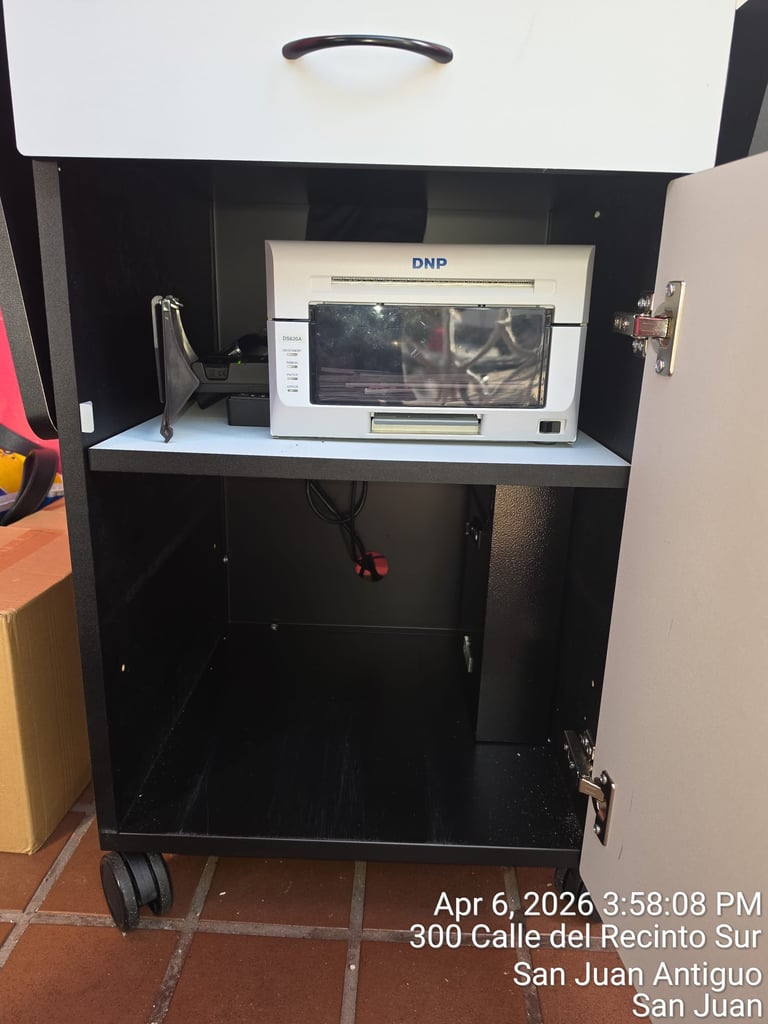
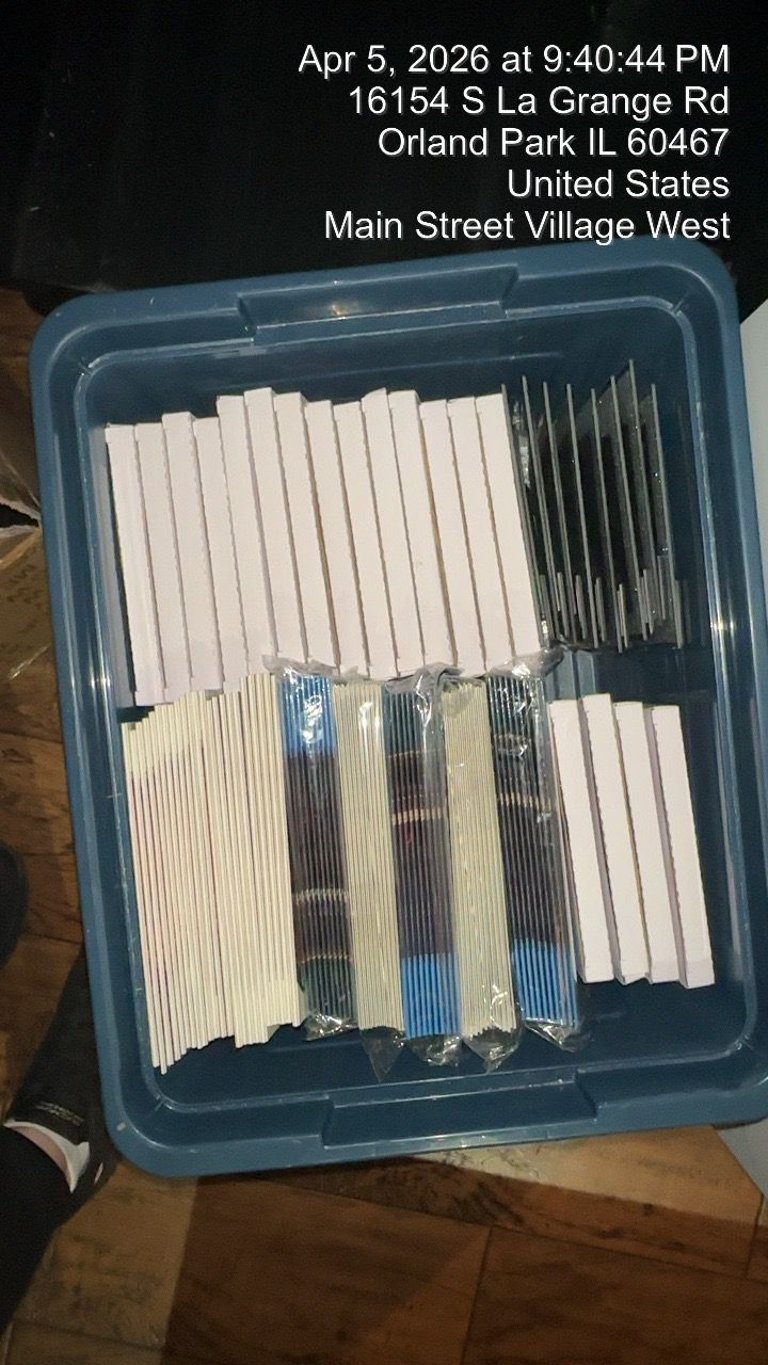
3.Open the Station Drawer:
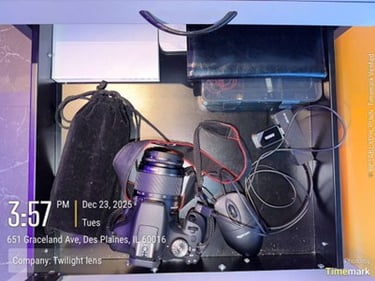
Take one clear photo showing all the equipment's in the drawer (camera, flash, SD cards, etc.).
4.Uniform Check
1. Take a photo of your badge and uniform (shirt, pants, shoes) all in black.
2. Make sure you have no necklace.
5.Prepare camera and flash
6.Clocking in and get your Time in report
On the desktop, open the Shift handler application.
Log in with the given credentials.
Click Login.
Fill in the details as described above.
Double-checks the data filled before submitting it and makes sure all has been counted.
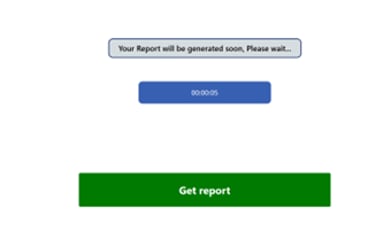
Click get report
Then send your Time-in report to your group chat.
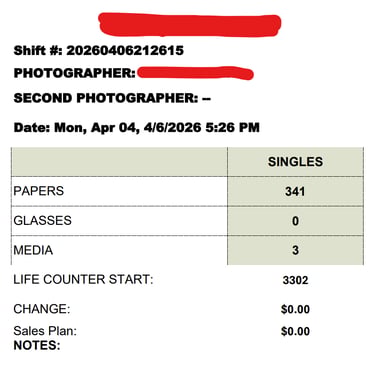
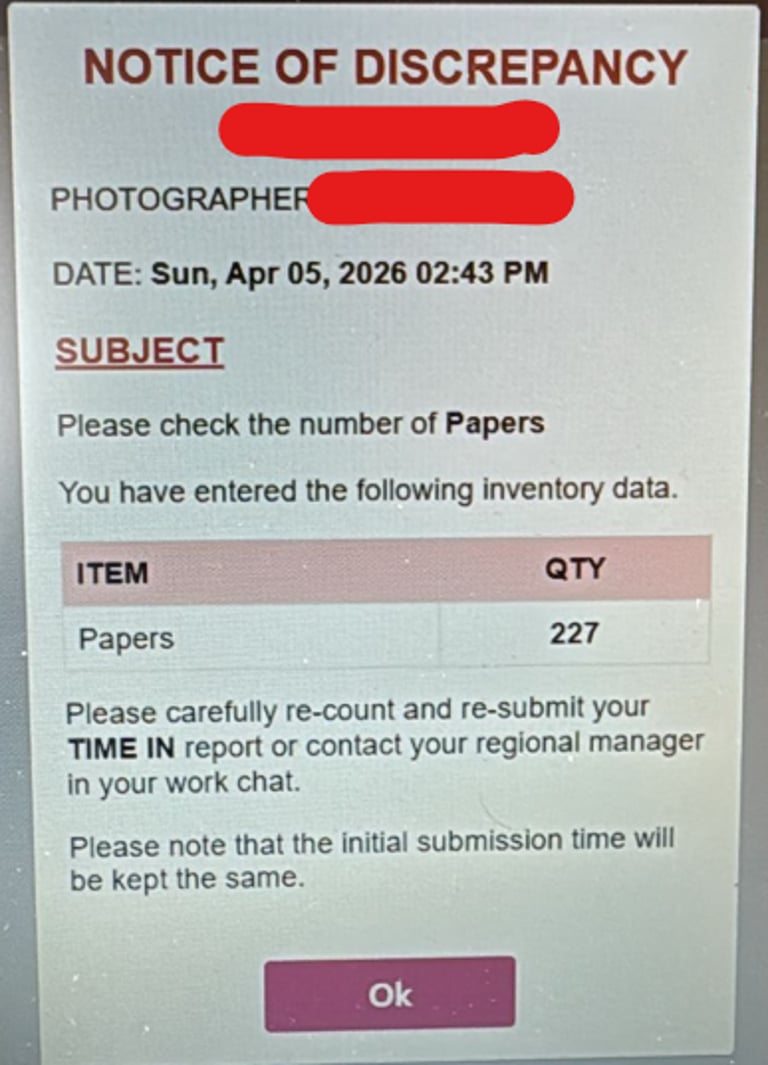
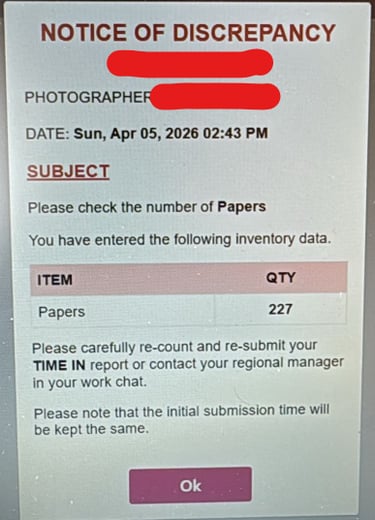
If you received a Notice of Discrepancy (example is below):
Double-check frame/media numbers.
Inform your team in the work chat and send a photo of the notice.
Resubmit the Clock-In form with the correct numbers if you find a mistake in the previous submission.
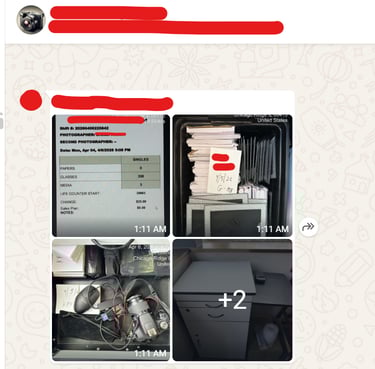
7.Report your images to your group chat:
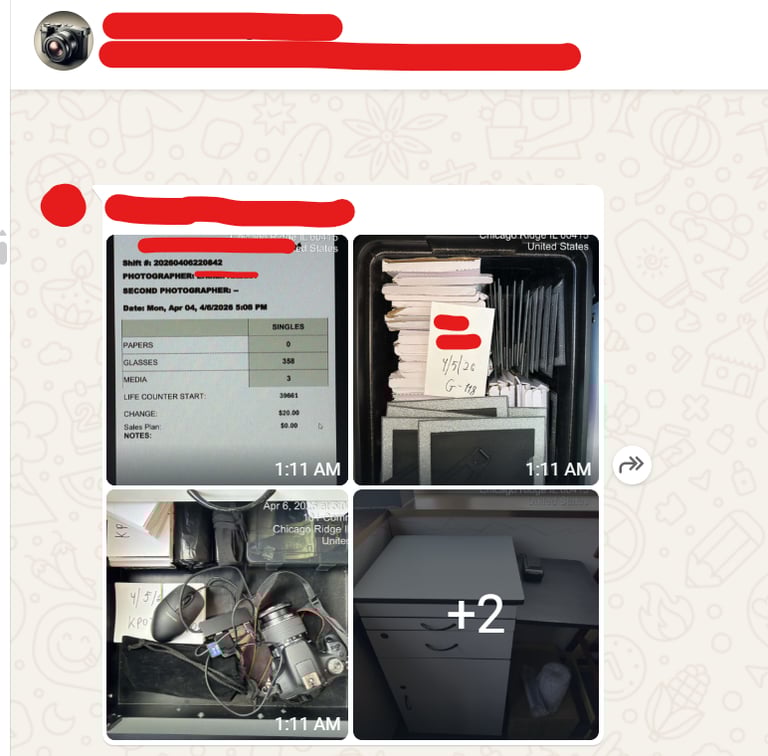
Send All Photos to your group Chat in WhatsApp:
1. Photo of the time in the report.
2. Photo of the drawer with equipment: photography supplies, change $, and the box with card readers.
3. Photo of uniform: so we can see that you wear a uniform (you can send without face, but it should show the shirt, pants, and Shoes).
4. Photo of frames in the station (countable, clear picture).
5. Extra boxes of both media and frames (countable, clear picture).
Remember:
“A photo captures not just what you see, but what you feel.”