Capturing unforgettable moments

Printed Unsold Photos Preparing for Recycling
Collect all printed but unsold photos into one stack.
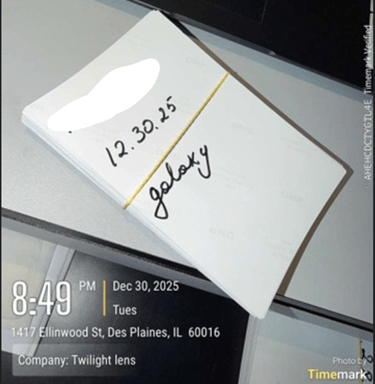
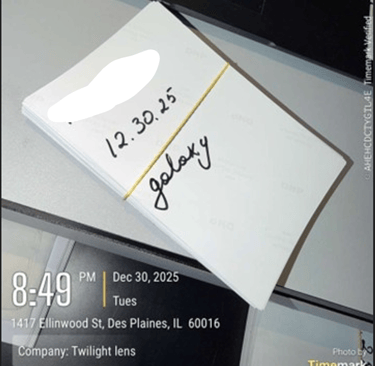
Secure them with a rubber band and write your name, restaurant name, and shift date on the back of the last photo.
Place the stack inside the station drawer (no printed photos should remain in the station). Never leave trash, frames, empty boxes, or any other trash around the station or on the floor.
Prepare your Time Out report:
1.Count
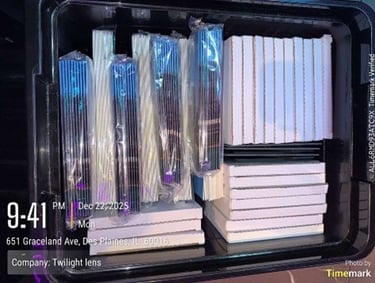
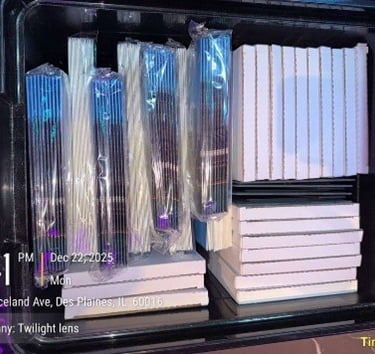
Frames (in the station + extra boxes).
Media sets (in the station + extra boxes). Do not count the one already inserted in the printer.
What are your cash sales (in dollars).
What are your card sales (in dollars).
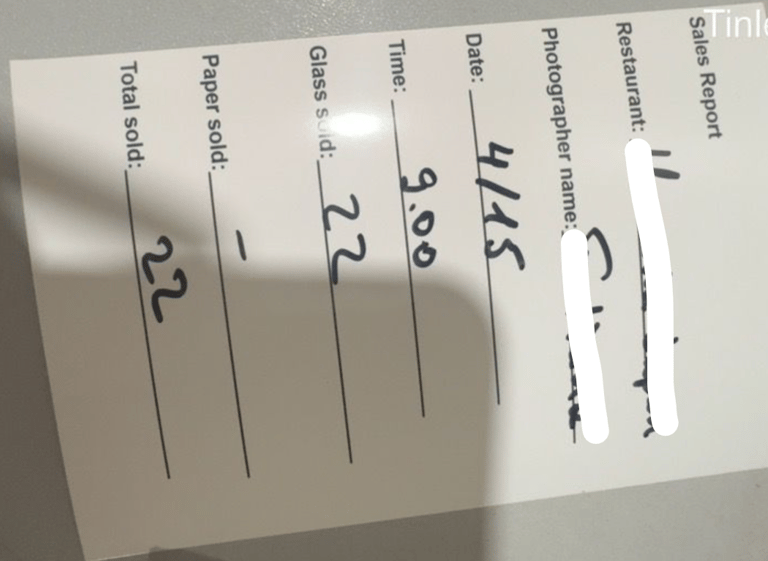
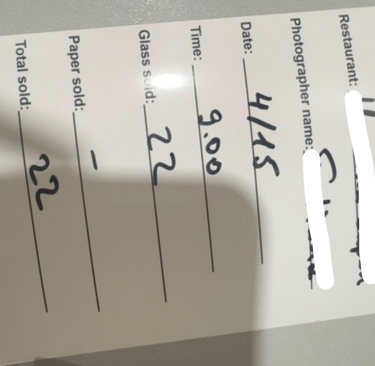
2.Additional Sales Report for Manager:
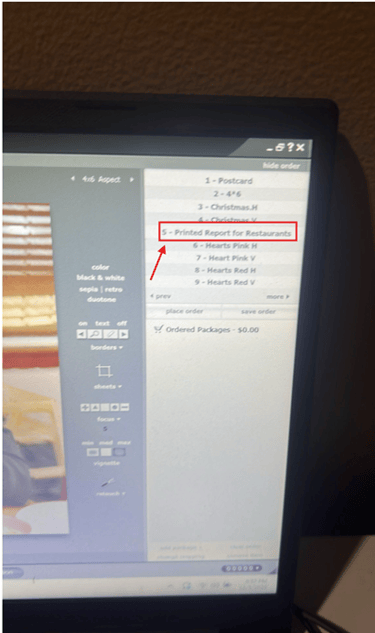
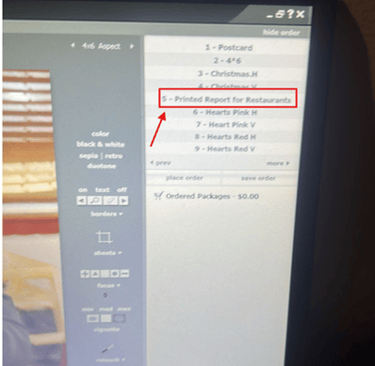
If you have received a pop-up window message for the “report for restaurant” template to be printed.
Go to the Darkroom, and choose the report for restaurant option from your top right corner dashboard.
Click to print, and fill it out based on your time-out numbers. Send a photo of the report, and hand it to the restaurant manager.
Note: If you didn't receive the hint message, skip this step.
3.Submit your Time out report:
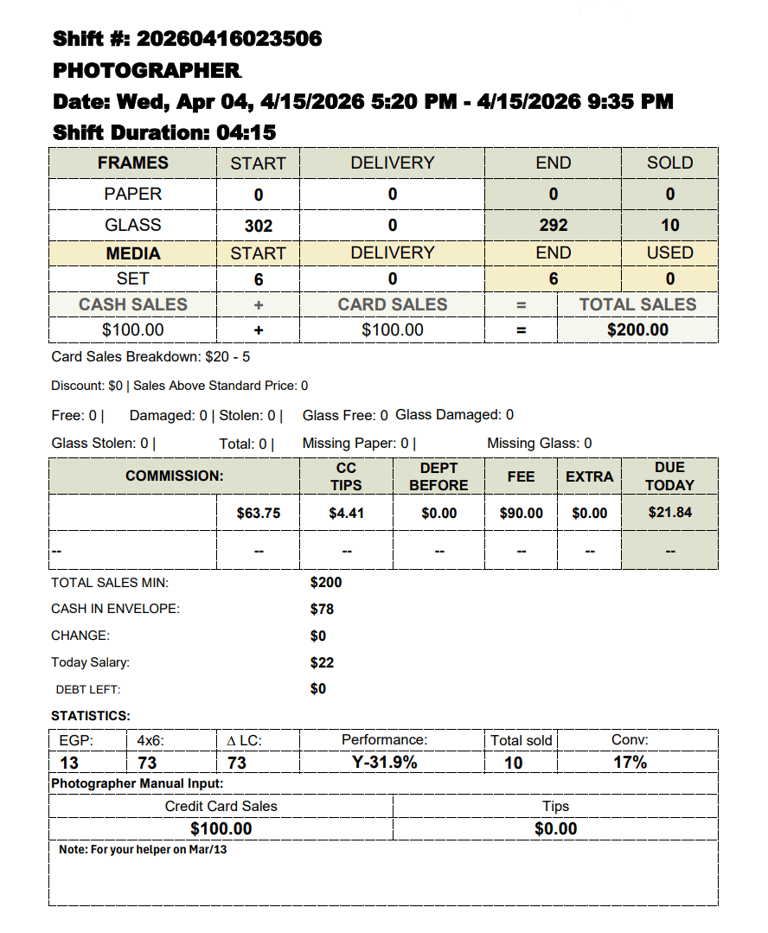
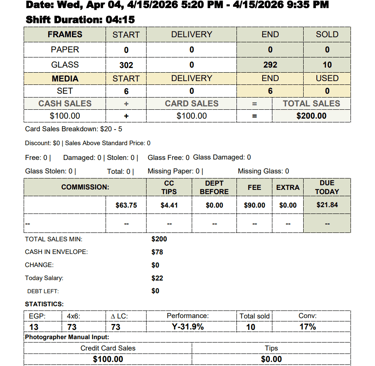
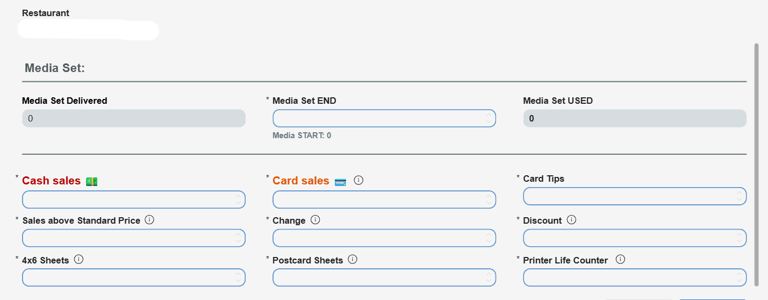
You will need to fill in a few fields:
Frames Damaged: If frames were damaged, write on the damaged frame (your name, restaurant name, and shift date), take a photo, and send it to your work chat. Report the frame as damaged and ask for approval.
Frames Free: Report frames given for free only if approved in your work chat (e.g., for managers).
Frames Stolen: Report any lost frames. You will be charged per frame lost.
Frames End: Enter the total number of frames at the end of your shift (station + extra boxes).
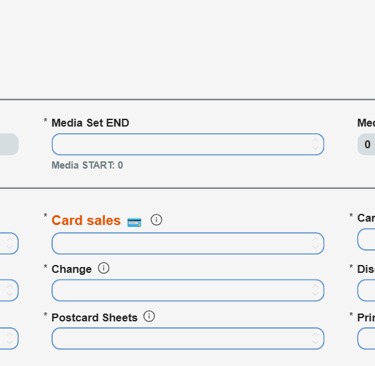
Media End: Enter the total number of media sets at the location (should match the start number unless you used).
Cash Sales: Enter total cash sales (do not include cash tips).
Card Sales: Enter total card sales as per your Square transactions.
Discount: Enter any approved discounts from your work chat (if any; usually 0).
Tips: enter your tips card from your card transactions.
EGP (Event Gallery Post): In Darkroom, navigate to Setup → Reports → Sheets. Adjust the time period (right top corner) to match your shift (usually it's enough to choose "Today" if you are the only one working at this location and no photographer was working before you today) and find Event Gallery Post (EGP).
4x6: Located just above Event Gallery Post (EGP) in the report.
Life Counter End: Use the Printer Info app on the desktop to check.
Change: change from the current & previous shift in the drawer.
Sales above standard price: If you sold frames above the standard price e (glass for more than $20 or paper for more than $15) this needs to be recorded. EX: if you sold one glass frame for $25, this will make the value $5.
Today’s salary = the amount from cash sales that goes to you (Commission + Tips + Debt Before + Extra - Fee):
Cash in envelope = the amount from cash sales that must be in the envelope and inserted into the safe.
4.Put Equipment Back and Take Report Photos:
Remove batteries from the flash and leave external flashlight batteries on charge. Return all equipment to the station as it was at the start of your shift.
Take the following photos:
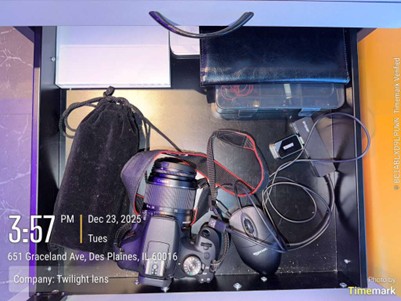
Equipment in Drawer: Includes all equipment (cameras, flash, adapter, etc.).
Equipment in Station: Includes all items (laptop, printer, etc.).
Square Device: Includes the Square reader and charger wire.
Change: Visible cash bills.
Frames in Station: Shows all frames in the station, clear and countable.
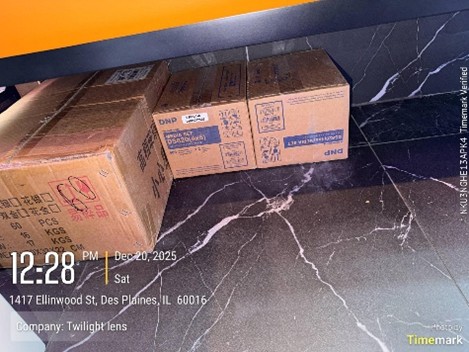
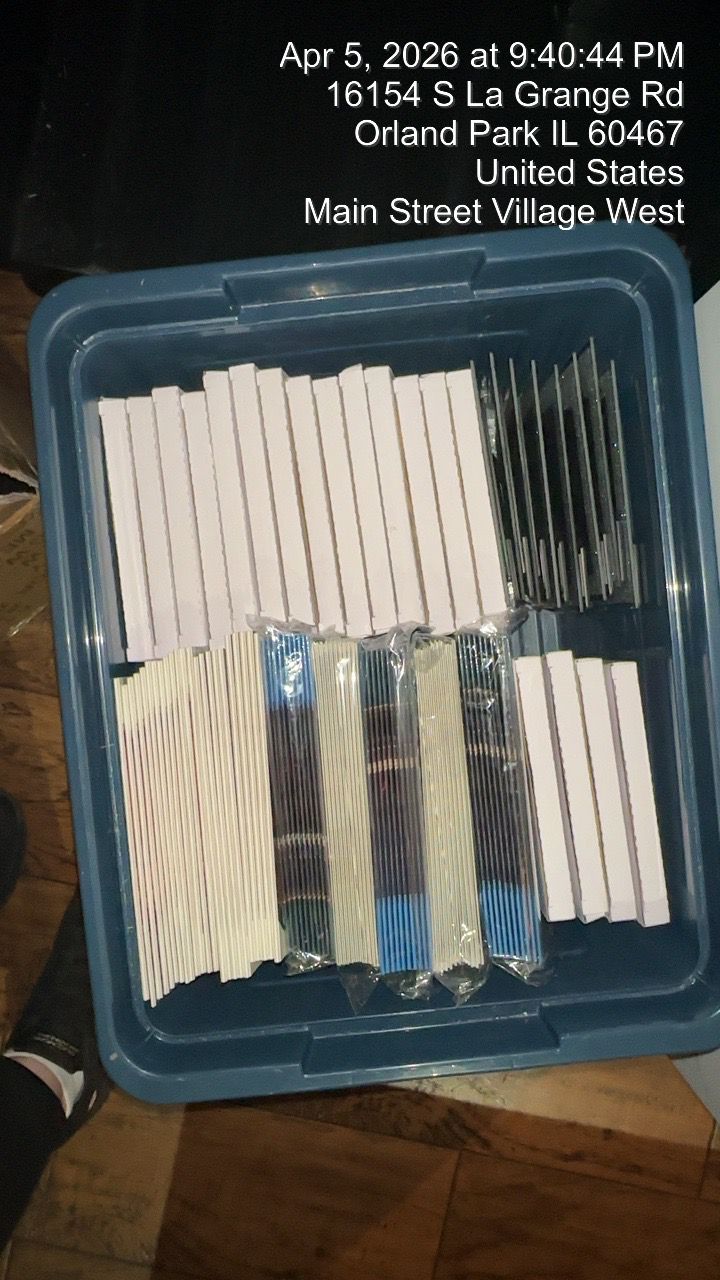
Frame & Media Boxes in Storage: Shows frames and media sets in storage.
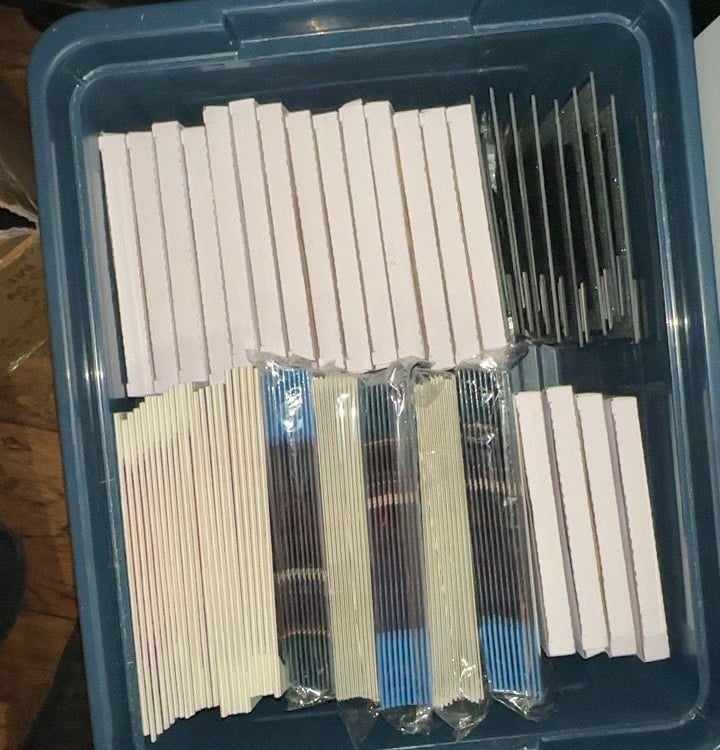
Storage Black Box Contents: Shows the contents, including extra media sets.
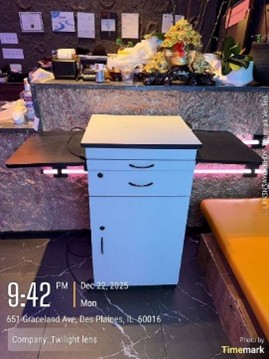
locked and clean station before leaving.
Note:
Put the key back into the lock on the station’s side and lock it.
Ensure the drawer and all equipment are locked and secure.
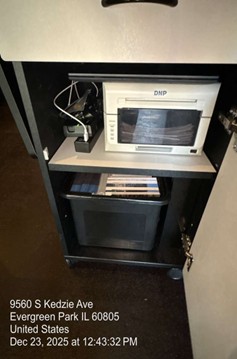
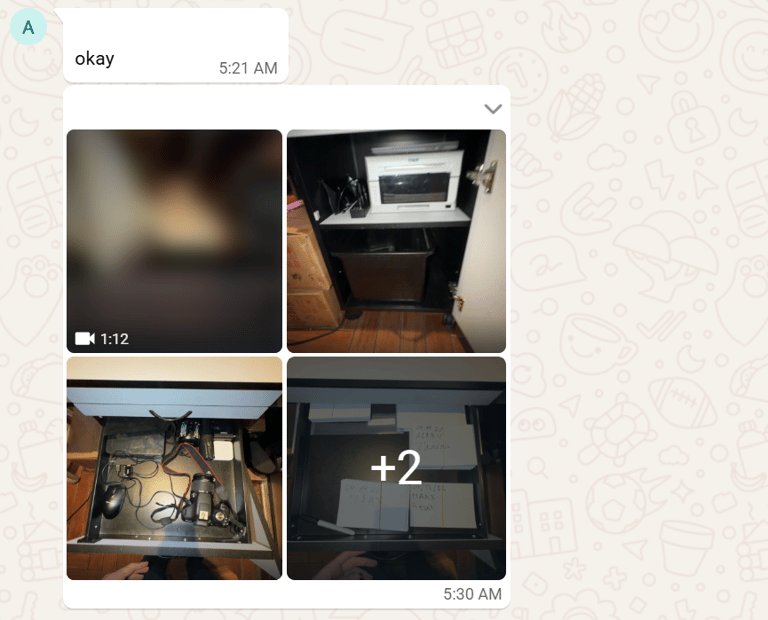
5.Send All Photos to Your Work Chat in WhatsApp and wait for the confirmation:
Picture of a closed and clean station.
Frame & Media Boxes in the storage.
Storage Black Box Contents.
Equipment in the drawer (camera, flash, square device, etc.).
Equipment inside the station (laptop, printer, chargers, etc.).
Frames inside the station.
Time-out card report.
Video while dropping cash envelope into the drop box (if applicable)
Screenshots of your transaction records for the day of the sales.
Wait for confirmation from your support chat manager before leaving the location to make sure everything is alright, and you won't need to return to fix something. It usually takes only a few minutes.
No Open Boxes or Trash: Ensure no open boxes or trash are left inside or outside the station.